 Animweb Technologies
Features
Proof of presence, from the first minute of class to the end of the semester
Attendance integrity
Layer after layer between a proxy and your register
Each layer closes a different loophole, so faking presence means defeating all of them at once - in the room, on the right phone, for the whole lecture.
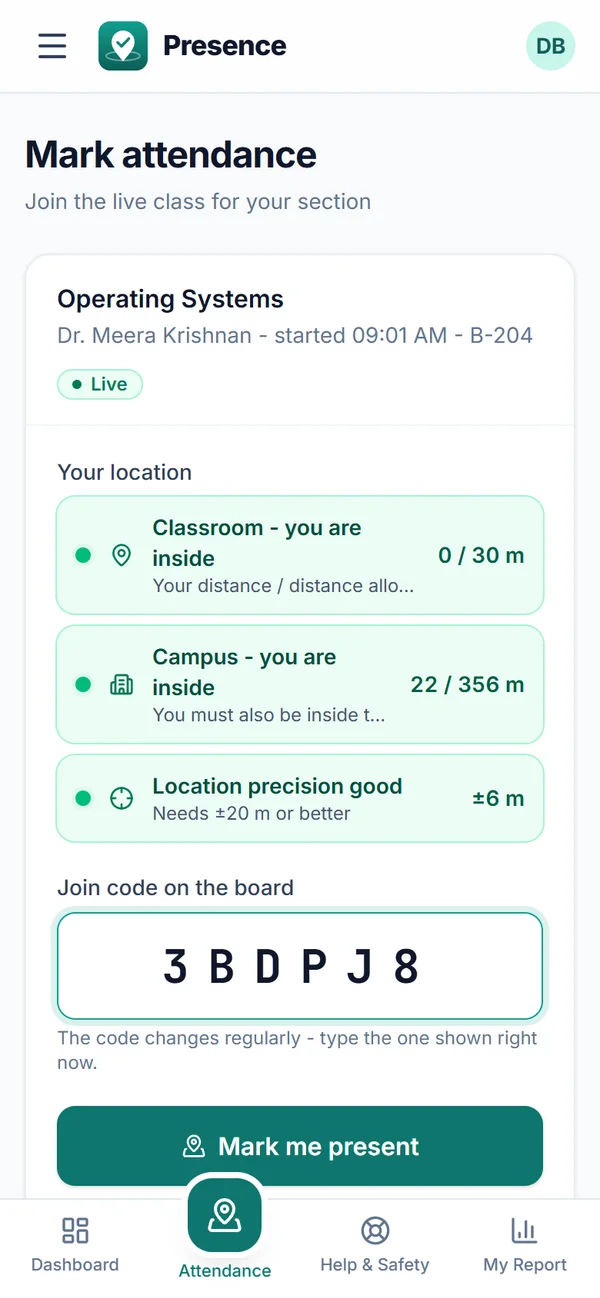
A real screen from Presence. Click to enlarge.
Rotating join code
Derived from a per-session secret, rotating every 10-120 seconds with a short grace window. Teachers can get a new code instantly or show it full screen.
Within the radius of the teacher’s phone
Teachers capture the room from up to 15 fresh GPS readings, weighted by accuracy, with outliers removed - indoors typically 10-30 m, better near a window. Students must be within the radius around the teacher and inside the campus boundary; the teacher’s own GPS error is allowed for at the edge of the room.
Room sound check for stacked classrooms
GPS cannot tell floors apart. A rotating near-silent signal from the teacher’s device proves a phone is in this room - floors block it and voice calls cannot relay it.
Fair, filtered GPS
Phones smooth their fixes and ignore stale or cell-tower positions; a student marks present only once the position has settled. Weak indoor GPS counts as “uncertain” rather than “left”, and frozen or teleporting fake-GPS fixes are flagged.
Campus network check
Optionally accept attendance only from the campus Wi-Fi - a check a fake-location app cannot change. Start in advisory mode, then require it.
Signed location updates
The phone checks the room itself and reports every minute (every two once settled in), and at once when it leaves, each update signed with the student’s own key (HMAC-SHA256) and a number that only goes up. Replays and forgeries are rejected on the server.
One registered phone per student
The phone is identified by a key created when the app is installed plus device signals, hashed, and is registered on the student’s first attendance. Students who reinstall the app or change phones ask their mentor or admin to reset the registered phone.
Face verification
Optional, on-device face-api.js descriptors. Templates are stored encrypted (AES-256-GCM); photos never leave the phone.
Alerts & presence checks
Leaving the app, a second tab, long idle periods, copy-paste and developer tools show up live as alerts, and the student app covers itself while developer tools are open. Surprise presence checks cost verified time for anyone who misses them.
In the classroom
A live console for every class
Teachers see who has joined, who is outside the classroom area and what looks suspicious - while the class is still running.
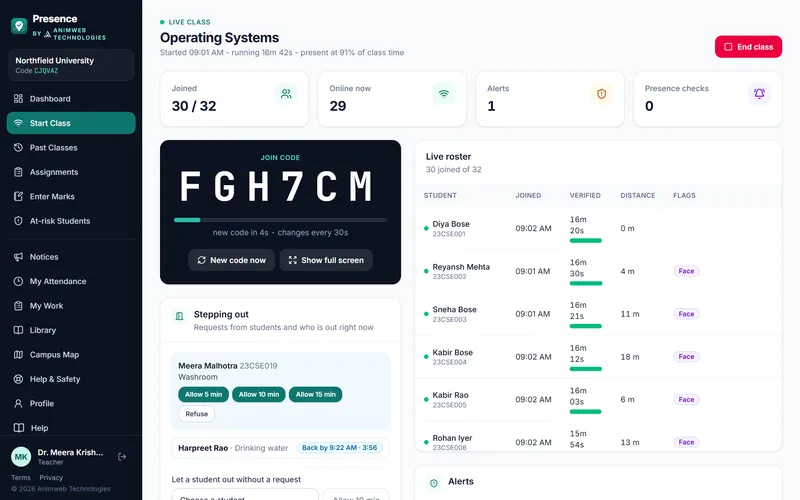
A real screen from Presence. Click to enlarge.
Quick start
Start Class offers your recent section and subject pairs as one-tap chips. Capture the room, choose how often the code changes and whether face match is required.
Live roster
Joined, online, verified minutes, distance from the classroom and alerts for every student, updated in real time.
Alerts
Timestamped alerts as they happen, with the student and the reason.
Move rooms mid-class
Capture the new location and every student is re-checked against it within seconds.
Review after class
Suggested statuses from the 91% rule and missed checks; change anyone to Present, Half or Absent with an optional reason, then lock. Classes end automatically at the planned duration if the teacher forgets.
Reports & insight
Know who is at risk before the semester ends
Every role gets a dashboard scoped to exactly what it should see.
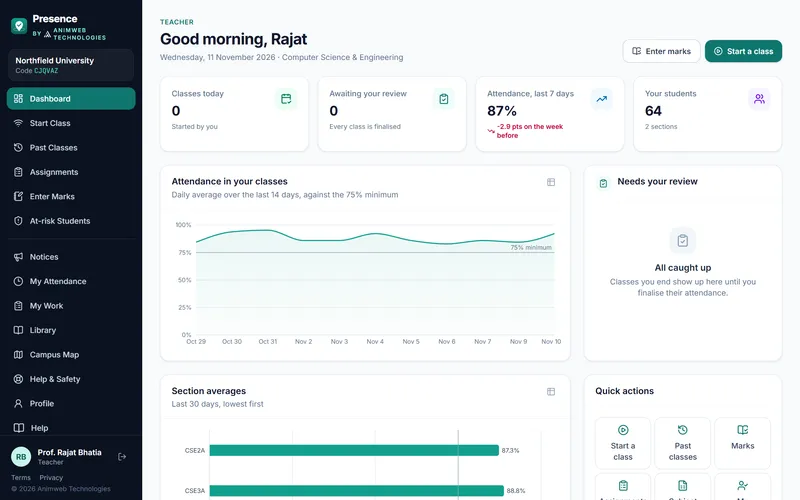
A real screen from Presence. Click to enlarge.
Student risk calculator
Students see subject-wise attendance, how many classes in a row they need to reach the minimum or how many they can still miss, and every class in each subject.
Subject register
Students down the side, class dates across the top and P, H, L, A or E in each cell, with totals and % - on screen, printable, or as a CSV for Excel.
Student attendance card
Open any student from a section or the at-risk list to see their subjects, recent classes with any changes and their reasons, and their leave history.
Section matrices
Students by subject with date ranges; a Half counts as 0.5 of a class.
Department & institution analytics
Daily trends against the minimum, week-on-week change, department averages, peak check-in hours and live classes - each chart also as a table.
Excel-ready exports
Spreadsheets that open straight in Excel, with summary rows - per class, per section, per subject register, daily, weekly or monthly.
At-risk lists
Current students below the requirement, lowest first, with the classes they need - overall or subject by subject, with a CSV download.
Administration
Run a whole university, not just a classroom
Twenty-one roles, from student to the institution console - plus offices you create yourself - each seeing only what it is responsible for.
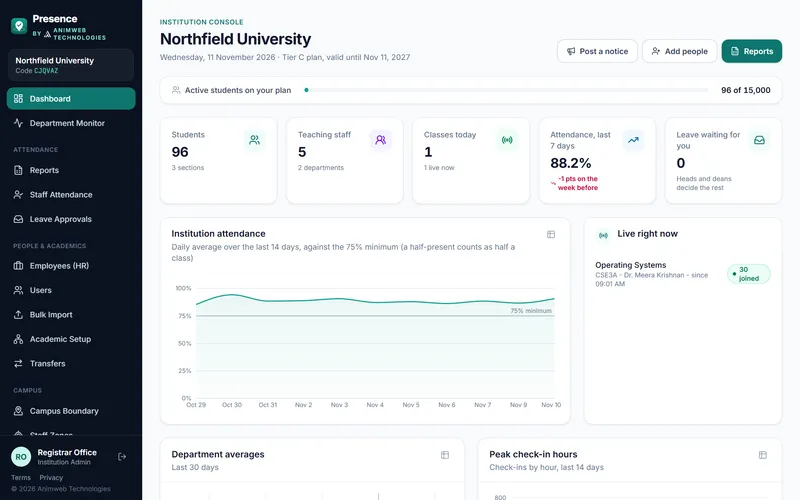
A real screen from Presence. Click to enlarge.
Offices you create
Create the Registrar’s Office, Admissions, the Vice-Chancellor’s Office or any other office without code, with its own staff, contact details and the parts of Presence it may open.
Institution dashboard
One look at the day: students, teaching staff, classes today and live now, attendance for the last 7 days with the change from the week before, and the leave only you can decide. Every figure opens the page behind it.
Needs your attention
The dashboard lists the departments, desks and offices that need attention or watching, with the main reason for each, next to one-tap shortcuts to people, academic setup, offices, fees, the library and settings.
Department monitor
Every academic department, campus desk and office on one screen, marked running well, keep an eye or needs attention - with the reasons.
A shared institution console
The administration console sets everything up but is not a person: real people sign in with their own accounts, attendance and leave.
Bulk onboarding
Import students and staff from Excel or CSV; a temporary password is generated for each person, who chooses their own at first sign-in - without retyping the temporary one, and with a suggested easy-to-remember strong password.
Sign in with Google
Optional: people sign in with the institution’s Google accounts, limited to the email domains you allow and only for accounts you have created. The ID and password you issue always work too.
Class lists you can change any time
Upload a corrected list to add, update or replace a class - with a preview before anything changes. Move students in bulk, promote a class each semester, graduate the final year.
Departments kept apart
Deans by department and year, heads of department and service staff see only their own students; every institution has its own database.
Academic structure
Colleges or schools, departments with their own programme length (1 to 6 years), terms and minimum attendance, any number of classes, and subjects (a lab can set its own minimum). Archive and restore anything; delete for good what nothing uses.
Setup checklist
The admin dashboard walks you through setup in order with a progress bar, lists each thing to fix once - such as subjects without a teacher or students without a section - and steps aside when setup is done.
Campus boundary
Click the map to place the campus centre and set its radius; buildings appear alongside.
Medical leave online
Students attach scanned certificates or photos; the class mentor, then the dean of their year, the HOD, a cluster head or an administrator decides. The health centre can verify documents first. Approved leave excuses matching absences.
Audit log
Finalised attendance, every per-student change (old and new status, with the reason), leave approvals, user changes and configuration changes are recorded.
Academics & events
Assignments, assessment marks submitted to the Examinations department, and club events with location-checked check-in.
Examinations & placements
Marks and careers, each with its own department
Marks stay with the Examinations department and placements with the placement cell - nobody else sees them, not even deans or the administration.
Examinations department
Teachers enter marks for their own classes and submit them. Examinations corrects, locks and publishes; students see only published marks, with the class average.
Each school kept apart
An exam cell works for one school or one department and never sees another’s marks; the Controller of Examinations sees the whole institution.
Re-evaluation with a trail
Changing published marks needs a reason, and every change - old and new marks, who and when - is in the audit log.
Class results
Every paper of a class side by side with totals and percentages, on screen or as a spreadsheet for Excel.
Placement cell
Companies, placement drives, internships, notices and forms in one desk, run by the training and placement office.
Shown to the right students
Each post reaches only the departments, years or classes the cell chooses; everyone else never sees it.
Application forms
Any post can collect applications with its own questions - resume link, CGPA, a choice or a paragraph - until its deadline.
Applications tracked
Shortlist, select or decline with a note the student reads in the app, and download every application for Excel.
Campus services
Every campus desk in the same app
Each department gets its own role and sees only its own module - never attendance or marks.
Library
Catalogue with numbered copies, issue and return at the counter, reservations with a hold shelf, renewals from the app, and late fines added to dues automatically.
Fees and dues
Raise dues for a student, a class or everyone; record bank transfers and counter payments with printable receipts. Students see what they owe - nothing is paid online.
Help & Safety
Encrypted complaints routed to the right desk, SOS and incident reports to the security control room, and a moderated lost and found.
Campus map
A public map for visitors with live position; a place such as the cafeteria can offer its own link to people standing there.
Transport
Routes with stops and pick-up times, seat-limited allocation, fee status and a daily boarding register. Students carry their bus pass in the app.
Hostel
Hostels, rooms and beds, wardens per hostel, and a nightly roll call that shows students on approved leave automatically.
Health centre
Confidential health profiles and visit records. A visit with rest days can raise a verified medical leave in one step.
Staff & communication
Staff attendance, HR and notices
Teaching and office staff are marked at the gate by face, and the whole institution hears official news in one place.
Face at the gate
A tablet at each staff entrance marks arrival and departure by face with a blink check - no phone and no code. Support staff are kept in a daily register.
HR desk
Employee records, staff leave with yearly balances, approvals written to the register, and a monthly report for payroll.
Notices
Institution-wide circulars and department notices with files and links, pinning, expiry dates and an unread count.
Platform
Installable, fast and isolated
Built on current, well-supported technology and designed to run on your own domain.
Installable app (PWA)
One tap on Android, Add to Home Screen on iOS. Students must install it - which keeps location checks reliable and ties attendance to their registered phone.
Offline-ready shell
The app loads instantly from cache; attendance and sign-in calls always go to the server.
Database per institution
Every institution’s data lives in its own database. Dedicated deployments can use their own cluster.
Clean, step-by-step setup
No built-in passwords or sample data: a new deployment opens a one-time setup screen where your institution and its first administrator are created, then the dashboard checklist takes you through the rest.
Your own domain
Paid institutions can run Presence on their domain under a signed license, restored from their demo in one encrypted file.
GST invoicing
Your plan, GST tax invoices and receipts in the app. Payment is by bank transfer against the invoice.
Try Presence with a real class, free for 7 days
Book a demo and we set up a trial workspace for one class of 30 to 40 students and their teachers. When you are ready, it converts to the full version in place - nothing to set up again.