 Animweb Technologies
Documentation
Presence documentation
Everything you need to run verified attendance and campus management - from your first class in the demo to every department of a running university. Choose your role to begin, or search from the menu.
New to Presence?
From an empty workspace to your first verified class in five steps
The guides use real screens from the product. Click any screenshot to enlarge it.
Start here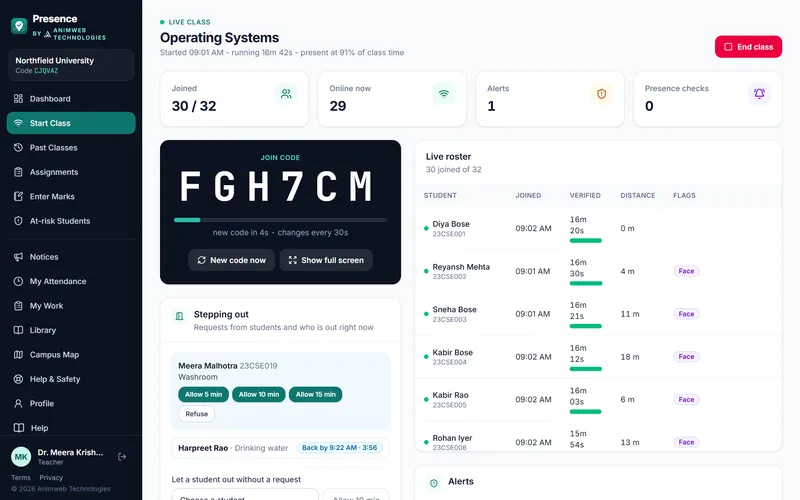
Start with your role
Popular tasks
Start here
Getting started
Book your free demo workspace, then run your first verified class in about fifteen minutes.
Signing in & signing out
Sign in with your password or with Google, first sign-in, two-factor authentication, forgotten passwords, signing out on one or every device, and the protections behind every sign-in.
Your demo and converting it
How to book the 7-day trial, what it includes, what happens when it ends, and how converting keeps every record.
Setting up a new campus, step by step
The order in which a new Presence deployment is set up - from the database to the first sign-in - and what your institution provides at each step.
Guides
Administrator guide
Run the institution from its dashboard - structure, people, attendance policy, departments and offices, reports, leave and the audit log.
Campus boundary, buildings and staff areas
Draw the exact campus outline and lock it, give each department its building, draw the areas where staff mark attendance, and how the 30 m classroom works.
Class lists, years and departments
Upload and correct student lists at any time, move students between sections, promote a section each semester, and keep every department's data separate.
Heads, deans and mentors
Follow your department, college or year - the department dashboard, at-risk students, leave decisions, corrections, notices, staff attendance and mid-semester transfers.
Teacher guide
Your dashboard, starting a verified class, presence checks, reviewing and finalising attendance, registers and exports.
Leaving the class screen and stepping out
What happens when a student leaves Presence during class, how students ask to step out, how teachers allow it with a time limit, and what is recorded.
Student guide
Install the app, use your dashboard, mark attendance from the classroom, answer presence checks and track your attendance, marks, fees and placements.
Medical leave and documents
How students apply for medical leave with scanned certificates, who approves it, what the health centre checks, and who can see the documents.
Academics and events
Assignments, assessment marks, the student Academics page, and club events with location-checked check-in.
Classrooms on different floors (room sound check)
Why GPS cannot separate stacked classrooms, how the room sound check does, and how to set it up.
Help & Safety
SOS and emergency numbers, private complaints with photo proof, theft and violence reports, the lost-and-found board and campus e-rickshaws.
My Work - tasks, documents, salary slips and my team
The staff portal - tasks from your head, documents to fill and sign on your phone, salary slips from HR, optional location sharing, and for heads, their team.
Departments & offices
Transport, hostel and health centre
Guides for transport managers, hostel wardens and health officers, and what students see.
Examinations department
How marks move from the teacher to the student, how each school and department is kept separate, and how Examinations corrects, locks, publishes and reports results.
Placement cell
Companies, placement drives, internships, notices and application forms - each shown only to the students the placement cell chooses.
HR and staff attendance
Staff attendance by face at the gate, the support-staff register, staff leave with yearly balances, employee records and the monthly report for payroll.
Fees and dues
Raise fees for a student or a whole group, record payments with printable receipts, waive or correct dues, and follow collection - with no online payments.
Library
Catalogue with numbered copies, issue and return at the counter, reservations, renewals and late fines that flow into Fees.
Offices you create
Create the Registrar's Office or any other office without code, choose exactly what its staff may open, and keep each person's own sign-in, attendance and leave.
Notices and circulars
Post institution-wide and department notices with files and links, pin what matters, set an end date, and see what is unread.
Clearance (no dues) and record requests
No-dues clearance for passing-out students signed on their phones and cleared by each desk, and how the administration asks departments for student records.
Your own domain
Reference
Plans and pricing explained
The three tiers and what each includes, why the price depends on the number of students, one-time charges, the security deposit, deployment options, what is not included and when payment is due.
Requirements & technical notes
Supported devices and browsers, network and GPS considerations, and how data is handled.
Setting up Sign in with Google
For IT teams - create the Google client ID in about ten minutes, connect it to Presence, and the security checks that protect every Google sign-in.
Roles and permissions
Every role in Presence, what it opens, and who can see each kind of record - the reference for administrators and auditors.
How accurate is the location check?
What phone location can and cannot do, why no web app can reach ±0.1 m, and how Presence combines several checks to place a student in the right room.
Troubleshooting
Quick fixes for the problems people meet most - signing in, location and GPS, phones, the join code, presence checks, classes, marks and the install screen.
Frequently asked questions
Answers about proxies, accuracy, privacy, the demo and billing.
Glossary
The words used across Presence and these docs, in plain language.
Trying Presence? The 7-day trial, step by step
The trial is deliberately small: one class of 30 to 40 students with their teachers, for 7 days. That is enough to see Presence work in real lectures without disturbing the rest of the campus.
- 1
Before day 1
We set it up
After you book, we create your trial workspace and email the administrator’s sign-in details within one business day. We can walk you through it on a call.
- 2
Day 1
Add one class
Draw your campus boundary, add one department and one class, and import 30 to 40 students and their teachers from a spreadsheet. About 30 minutes.
- 3
Day 2
Students install the app
Students sign in, choose their own password and install Presence on their phone. Their phone is registered at their first class.
- 4
Days 2 to 6
Run real lectures
Teachers start each lecture in under a minute. Try presence checks, stepping out and the review screen, and watch the dashboard fill with real numbers.
- 5
Day 7
Review and decide
Look at the reports, the at-risk list and what teachers and students say. Convert in place and keep everything, or let the trial end at no cost.