 Animweb Technologies
Student guide
Install the app, use your dashboard, mark attendance from the classroom, answer presence checks and track your attendance, marks, fees and placements.
5 min read
Install the app
Presence must be installed on your phone - your institution requires it, and it keeps location checks reliable during class.
- Android (Chrome): open the Presence link and tap Install app, or use the menu (⋮) → Install app.
- iPhone (Safari): open the link, tap Share → Add to Home Screen → Add.
Then open Presence from your home screen and sign in with your institution code, roll number and password.
Your dashboard
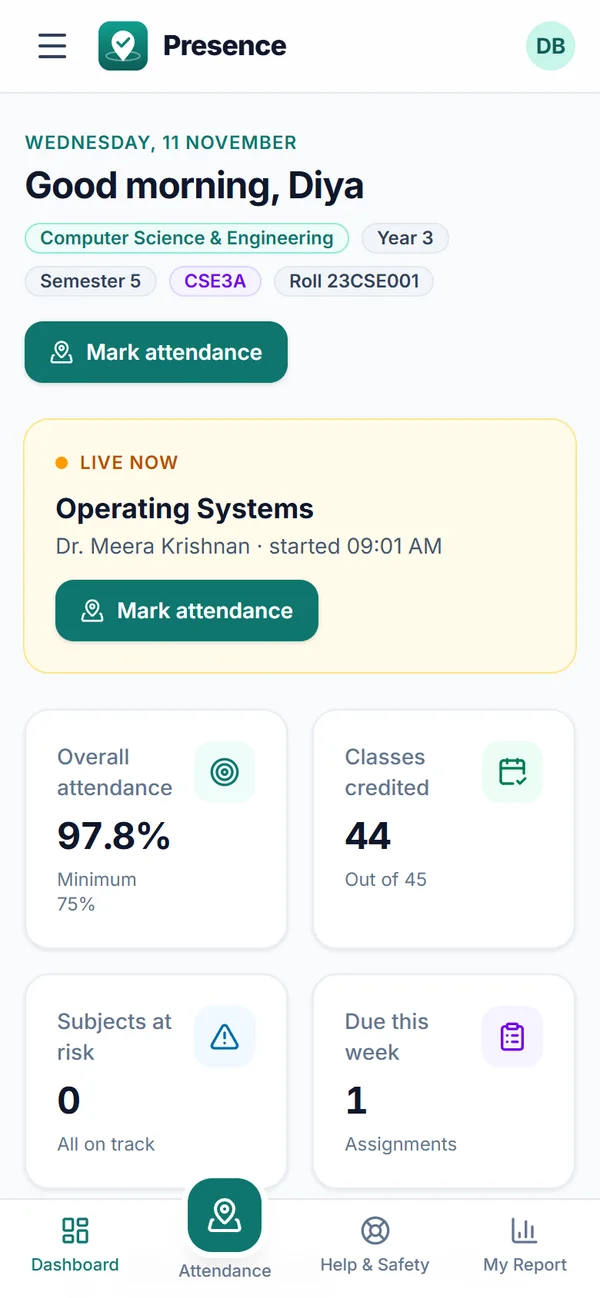
The student dashboard.
Your Dashboard greets you with today’s date, your department, year, semester, class and roll number, and a Mark attendance button.
- When a class is live, a banner at the top takes you straight to marking attendance. While you are in class it shows whether you are verified and your verified share so far.
- Key figures: your overall attendance against the minimum, classes credited, subjects at risk and assignments due this week. Tap a card to open the details.
- Attendance health - your overall percentage, and either how many classes in a row you need to reach the minimum or how many you can still miss.
- Subjects - lowest first, each against its own minimum, with how many classes you need where you are behind.
- Recent classes - your last five classes and your status in each (Present, Half, Left early, Absent or Excused).
- Quick actions - Mark attendance, My report, Apply for leave, Marks & work, Fees & dues and Placements.
- Due soon, Upcoming events and the latest Notices.
Your phone is your ID
Your phone is registered the first time you mark attendance. After that, attendance can only be marked from that phone, and never from another student’s phone. If you reinstall the app or change phones, ask your mentor or admin to reset your registered phone.
Marking attendance
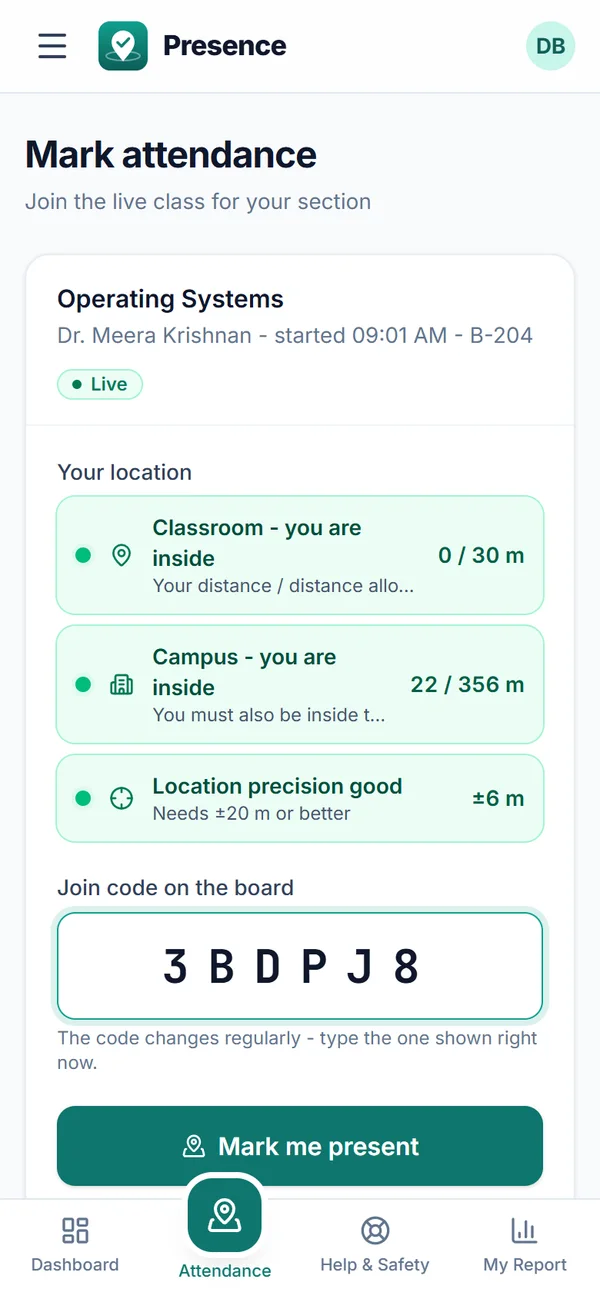
Before joining: both location checks are green and the code from the board is typed.
- When your teacher starts the class, open Mark Attendance. If Presence is already open, a pop-up tells you the class has started.
- Allow location access. The screen shows whether you are inside the classroom and the campus.
- Type the code on the board and tap Mark me present. The code changes regularly - type the one shown right now. If the button is greyed out, the screen lists what is still missing.
- Keep Presence open with the screen on. Your phone keeps checking that you are still in the room and reports about once a minute.
If the screen locks or you lose your connection for more than about a minute, verification stops and you are checked out after about 90 seconds. Reopen Presence and rejoin with the current code.
If GPS gets weak indoors you will see Weak GPS - still counted: stay where you are and your time keeps counting. If you clearly walk out of the classroom area for about 45 seconds you are checked out; come back and rejoin with the current code.
Leaving before the end? Tap Leave class - your verified time stops there.
Keep your phone’s date and time set automatically: updates from a phone whose clock is more than a minute off are refused.
Room check
Some classrooms use a room sound check (it tells floors apart). When you see it, tap Verify room and hold your phone up for a few seconds. Allow the microphone the first time - Presence only listens for the classroom’s signal and records nothing.
Stay on the class screen
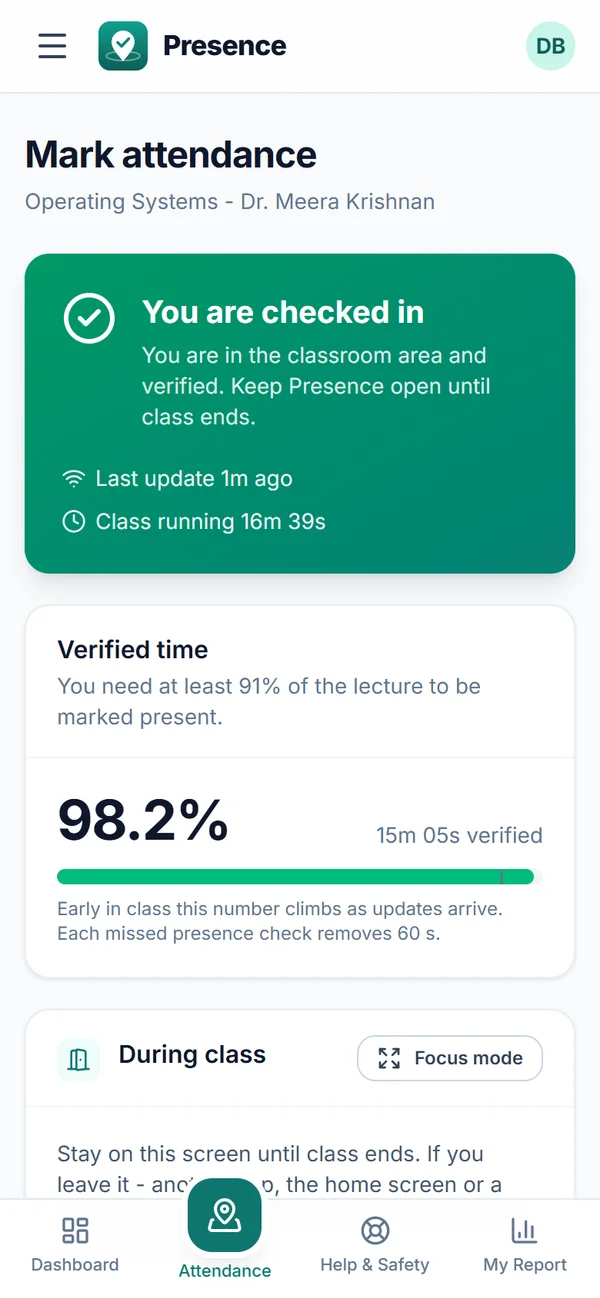
After joining: verified time climbs through the lecture.
Keep Presence open on the class screen until class ends - your teacher is told if you leave it, and the time away is not counted. Need to go out? Tap Ask to step out and wait for your teacher. See Leaving the class screen and stepping out.
Presence checks
At any point your teacher may show a new code. A full-screen prompt appears with a countdown - type the code before time runs out. Missing a check costs 60 seconds of verified time.
Face ID
If your institution requires it, register your face once under Face ID, then use Test match to make sure it works before class. Your face is analysed on your phone; only an encrypted template is stored - never a photo.
Your attendance
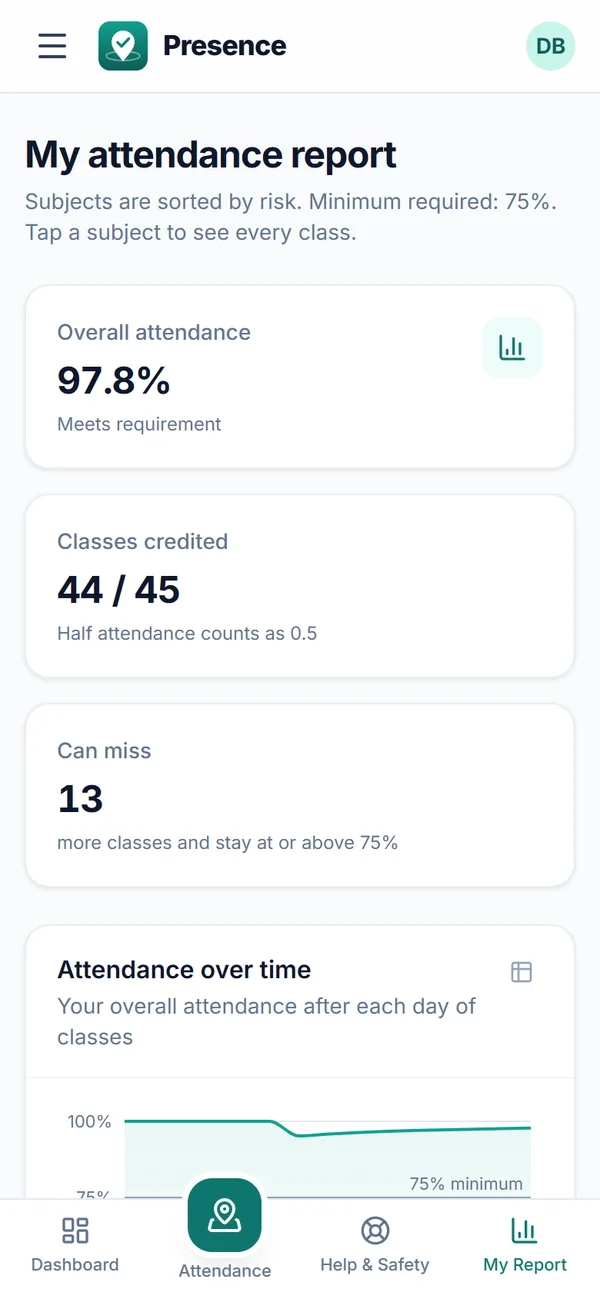
My Report: attendance subject by subject.
My Report shows each subject’s percentage, sorted by risk:
- below the minimum, it shows how many classes in a row you need to attend to reach it;
- at or above it, it shows Can miss N - how many more classes you can miss and still stay at or above the minimum.
Tap a subject to see every class in it, with the date and your status.
Leave
Apply under Leaves. For medical leave, attach your certificate or prescription: choose a PDF or photo, or tap Scan with camera. Your class mentor decides first, then the dean of your year or your head of department. A leave can be up to 60 days long, can be applied for up to 60 days after it starts, and cannot overlap another request. You can withdraw a request while it is still waiting. See Medical leave and documents.
Assignments, marks and events
Academics shows your assignments and marks; Events lists club events you can check in to. See Academics and events.
Fees and placements
Fees & Dues shows what you owe, what is paid, anything overdue and your receipts, with how to pay (bank transfer or the counter - never online in the app). Placements shows the drives, internships, notices and forms the placement cell has shared with you; apply in the app and follow each decision there.
Bus, hostel and health
Bus, Hostel & Health shows your bus pass (route, stop and pick-up time), your hostel room and warden, and your health profile. Fill in your blood group, allergies and an emergency contact: only you and the health centre can see them.
Tips: keep location services on and the screen on, stay near a window if GPS is weak, and do not switch apps during class - it is shown to your teacher.