 Animweb Technologies
Teacher guide
Your dashboard, starting a verified class, presence checks, reviewing and finalising attendance, registers and exports.
6 min read
Your dashboard
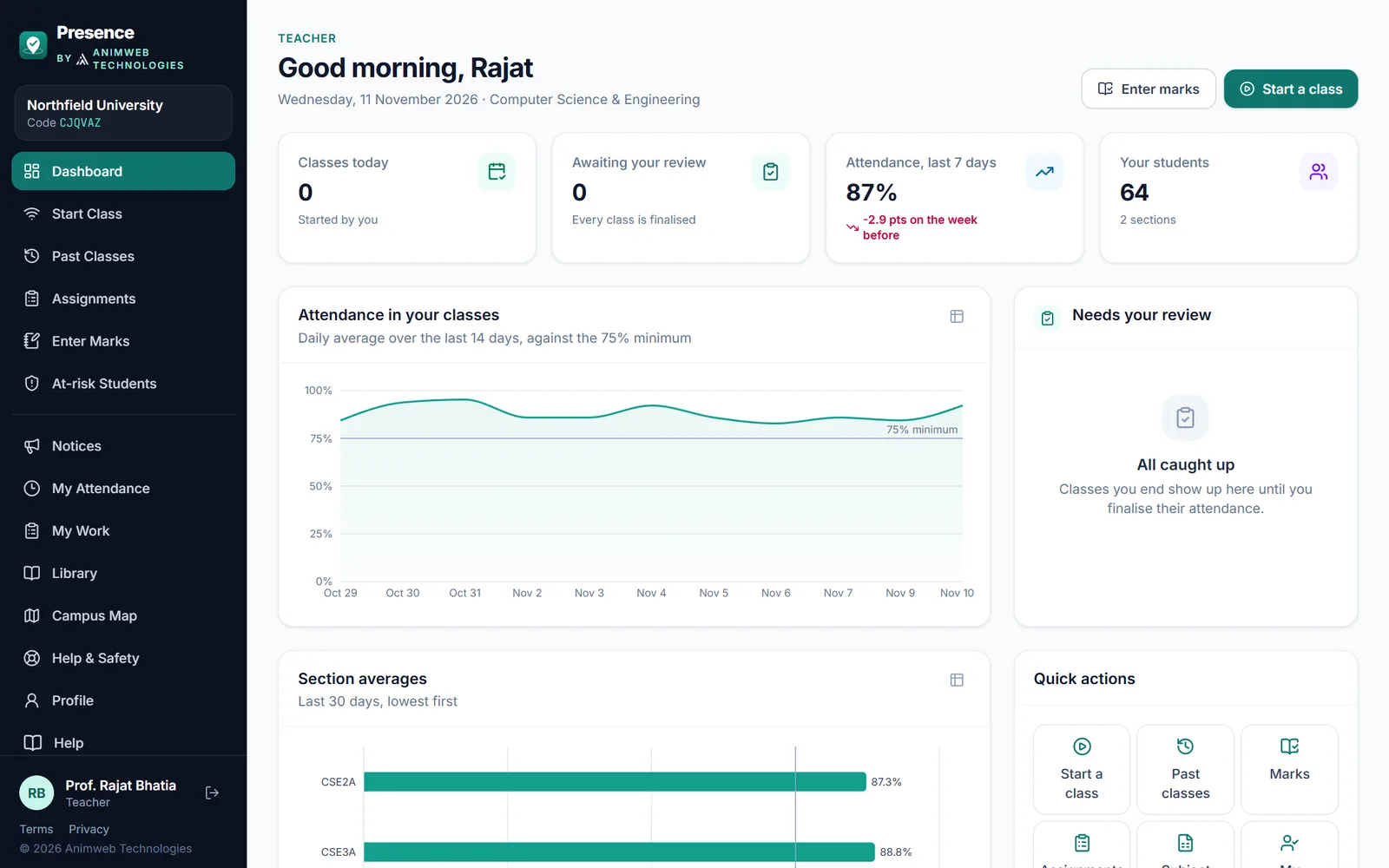
The teacher dashboard.
Your Dashboard opens with a greeting, today’s date and your department, and two buttons: Enter marks and Start a class. A class you are running appears in a banner at the top with Open live view.
- Key figures - click a card to open the page behind it:
- Classes today, started by you, and how many are live;
- Awaiting your review - ended classes you have not finalised yet;
- Attendance, last 7 days in your classes, with the change in points from the week before, red when below the minimum;
- Your students, and how many of your sections are below the minimum this month.
- Attendance in your classes - the daily average over 14 days against the minimum. The table icon shows the figures.
- Needs your review - the classes waiting to be finalised; tap one to review it.
- Section averages - each of your sections over the last 30 days, lowest first. A banner links to At-risk Students when any section is below the minimum.
- Quick actions - Start a class, Past classes, Marks, Assignments, the subject register (or My Class for mentors) and My Attendance.
- Recent classes - your last eight classes with how many were present and whether each is live, finalised or waiting for review, followed by the latest notices.
Mentors see their whole class’s figures, and Leave to decide in place of Your students. See Heads, deans and mentors.
Start a class
- Open Start Class.
- Choose the section and subject. Classes you ran recently appear under Quick start as one-tap chips (subject, section and room) - tap one to fill in the form; the class you usually teach at this hour comes first.
- Under 2. Classroom location, stand in the middle of the classroom and tap Capture classroom location. If you typed the room name, Presence may offer the saved location of an earlier class in that room - pick it to keep the classroom exactly where it was (you still capture your own position, which must be in that room). Presence takes up to 10 GPS readings, weights each by its accuracy and removes outliers. Indoors this is typically 10-30 m (better near a window). Accuracy under 30 m is ideal; above 100 m is refused - step towards a window and capture again.
- Pick the classroom radius (30 m by default; 20-60 m, more only for large halls), how often the join code changes and the planned duration.
- Under 3. Extra checks (optional), choose whether face verification or the room sound check is required.
- Tap Start live class.
No GPS signal indoors? Choose a building instead of capturing. If you skip both, any student anywhere on campus can join with the code.
Classroom directly above or below another one? Turn on the room sound check - GPS cannot tell floors apart. See Classrooms on different floors.
During the class
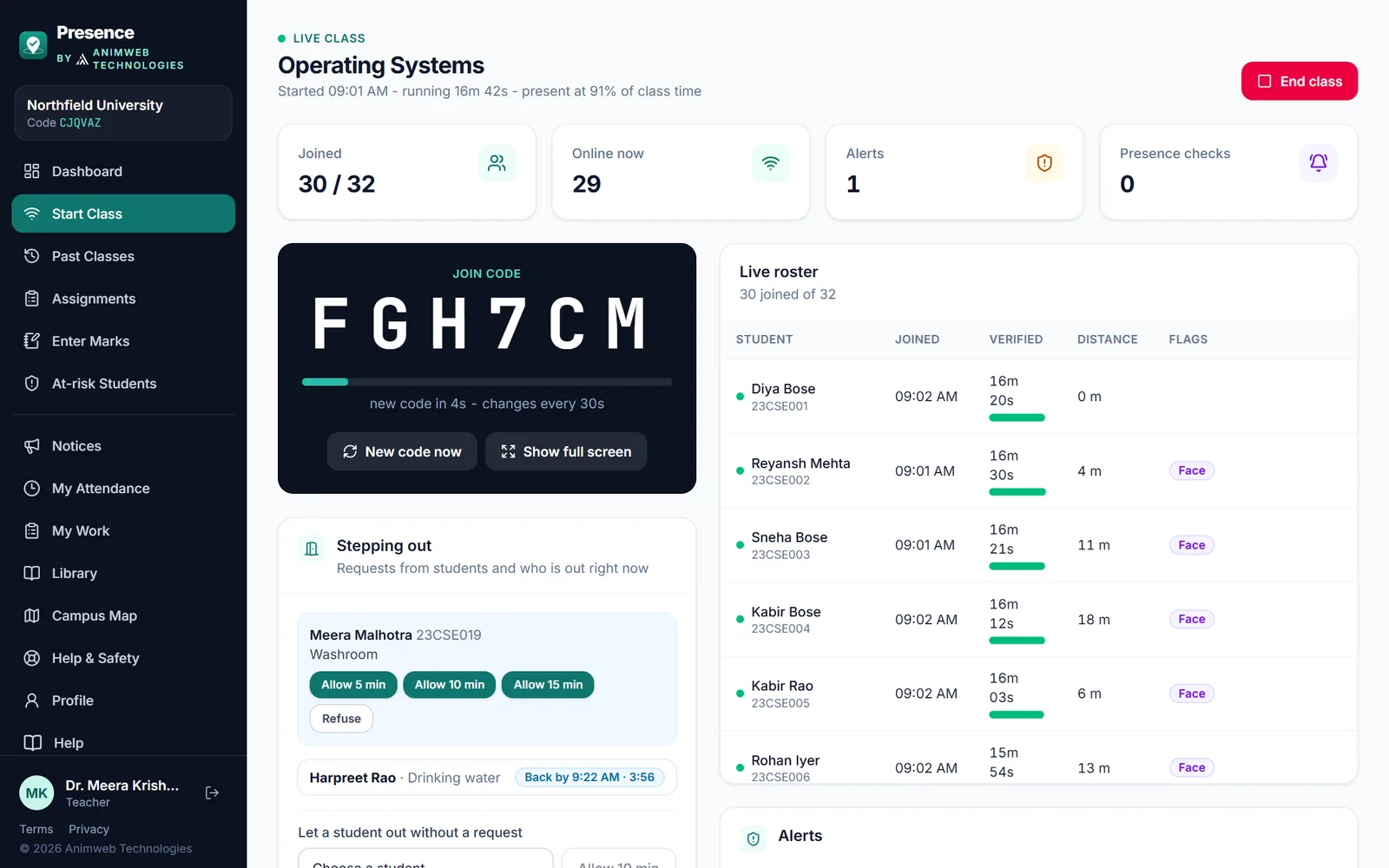
The live class screen: join code, requests to step out and the live roster.
- Show the join code on the projector with Show full screen. It changes automatically; New code now shows a fresh one immediately. During a presence check, the full-screen view switches to the check code by itself.
- The live roster shows who joined, who is online, verified minutes, distance from the classroom and alerts.
- Alerts lists app switches, idle phones, a second tab, copy-paste attempts and GPS problems as they happen. Treat Idle (no touch for 5 minutes) and Switched app (also shown when a phone screen locks) as hints. Outside, GPS anomaly and Room not heard are the strong signals.
- Roster badges: Weak GPS (indoor signal temporarily imprecise - time still counts), Room / Room not heard (room sound check).
- Moved rooms? Change location captures the new spot, and every student is checked against it within seconds.
Presence checks
Tap Start presence check with a response window (30-120 s). It is available once students are online. A new code appears on your screen; students get a full-screen prompt and must type it. Each missed check deducts 60 seconds from a student’s verified time.
Stepping out and leaving the screen
The live screen shows when a student leaves the class screen, and students’ requests to step out under Stepping out - allow 5, 10 or 15 minutes, or refuse. You are told when someone is not back in time. See Leaving the class screen and stepping out.
End and review
Tap End class. If you forget, the class ends automatically at the planned duration you chose. Presence then suggests each student’s status:
- Present - verified for at least the threshold (default 91%) of the lecture, after check penalties.
- Left early - joined but below the threshold.
- Absent - never joined. Excused - absent with approved leave.
On the review screen the Suggested column shows what Presence worked out. You can set any student to Present, Half or Absent with an optional reason (recommended), use Mark all present to set everyone at once, or Undo my changes to go back to the suggested list. Then tap Save & finalise. After finalising, corrections go through your HOD. Finalising and every per-student change (old and new status, with your reason) are recorded in the audit log.
Past classes and reports
Past Classes lists every class you ran, with a CSV of all students for each one. Filter by Needs review to find classes you have not finalised yet. Open a class (Review or View) for the Present CSV (Present + Half) and the Absent CSV (Absent + Left early).
Register (on Past Classes, once you pick a section and a subject) shows the subject register: students down the side, class dates across the top and one mark per class, with totals and %. Print it, or download it as a CSV for Excel.
| Mark | Meaning |
|---|---|
| P | Present |
| H | Half |
| L | Left early |
| A | Absent |
| E | Excused (leave) |
At-risk students shows who in your sections is below the minimum, overall or per subject, with a CSV download. Click a student’s name there (or in My Section if you are a mentor) to open their attendance card: subjects, recent classes with any changes and their reasons, and leave history.
Assignments and marks are covered in Academics and events.